Learn

Updated August 12, 2026 · Simply Finance

Every feature, explained.

This is the complete Simply Finance handbook, ordered from the features that matter most in daily use to the advanced controls you may only need once. Every entry explains the problem it solves and the shortest path to using it.

0108

Use every day

The essentials

Start here. These features do most of the work in a healthy money routine.

01

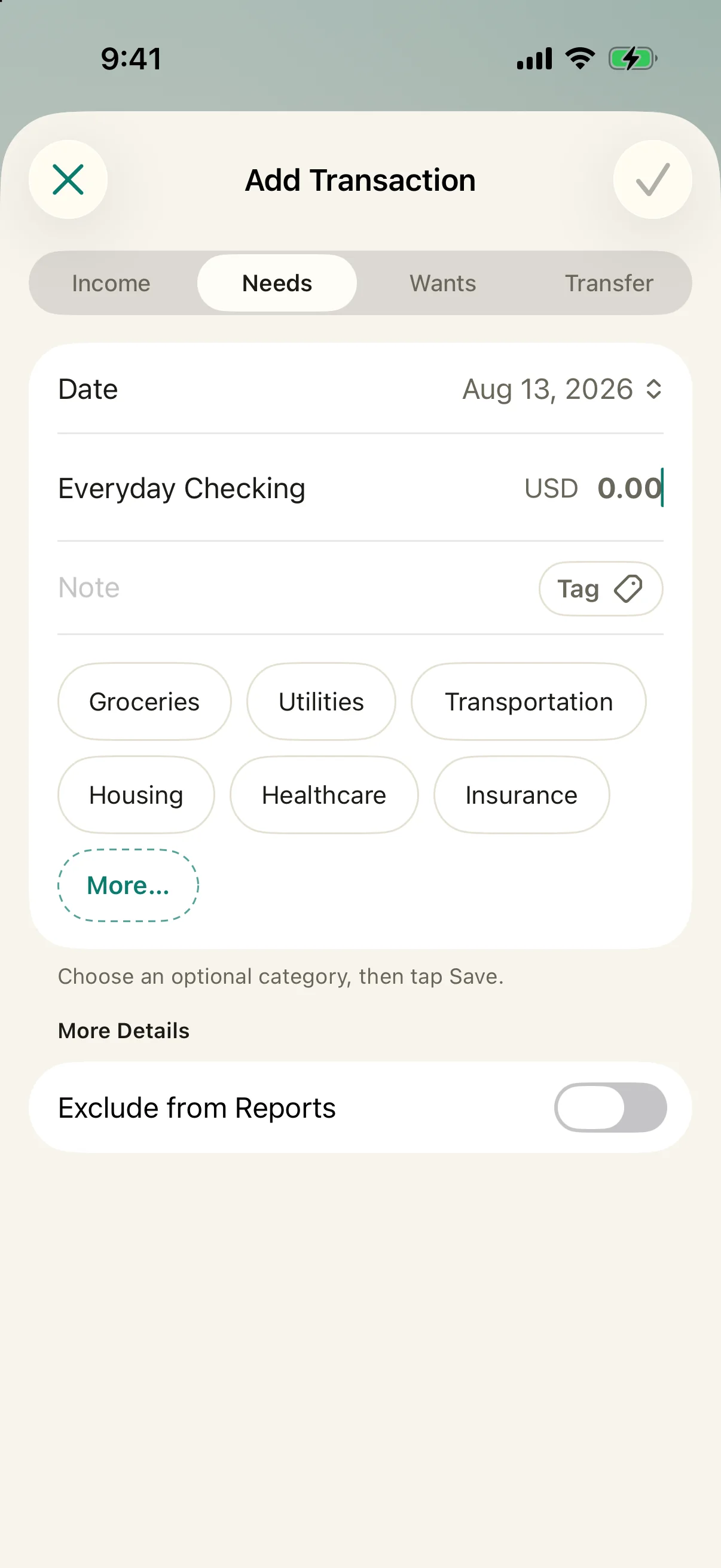
Fast transaction entry

iPhone, iPad & Android

What it solves
A money tracker only works if recording a purchase is faster than putting it off. Quick entry keeps your balances, budgets, and answers current without connecting a bank.
How to use it
Tap +, choose Income, Needs, Wants, or Transfer, enter the amount, then tap a category to save. Add a date, note, tags, or “Exclude from Reports” only when you need them.
Fast transaction entry in Simply Finance
Current app view

02

Full Mode and Spending Mode

iPhone, iPad & Android

What it solves
Not everyone wants to maintain account balances. Full Mode gives you the complete financial picture; Spending Mode removes that overhead and keeps only lightweight expense tracking.
How to use it
Choose a mode during setup, or open Settings → App Mode later. Use Full for accounts, balances, Runway, goals, and forecasts. Use Spending when you only want to log and review purchases.

03

Accounts and live balances

Full Mode

What it solves
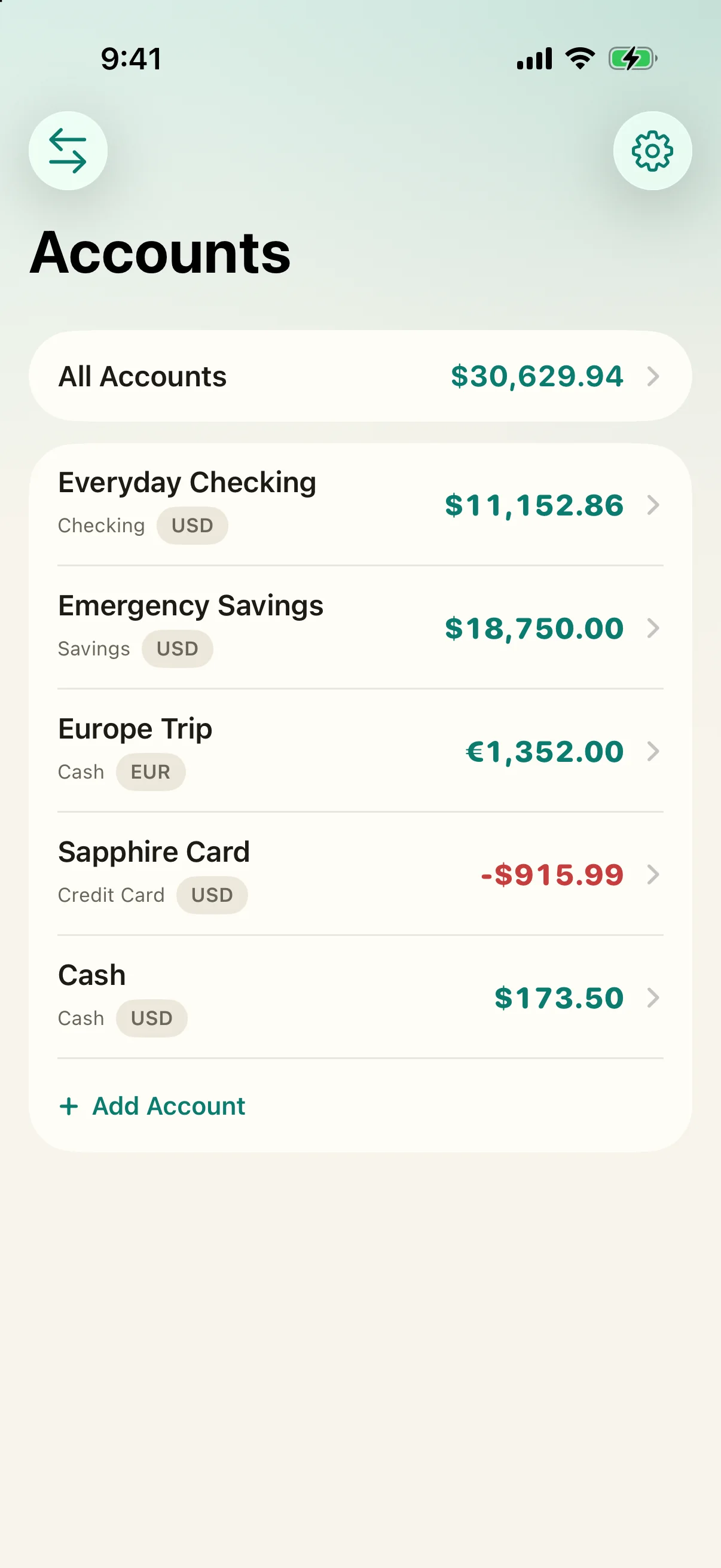
Checking, savings, cash, credit cards, and debts are hard to reason about separately. Accounts put every balance and your combined total in one place.
How to use it
Open Accounts and tap +. Pick the account type, currency, and starting balance. Open an account to see its history; edit it to adjust the balance, add account-wide tags, or exclude it from totals or reports.
Accounts and live balances in Simply Finance
Current app view

04

Simple category budgets

iPhone, iPad & Android

What it solves
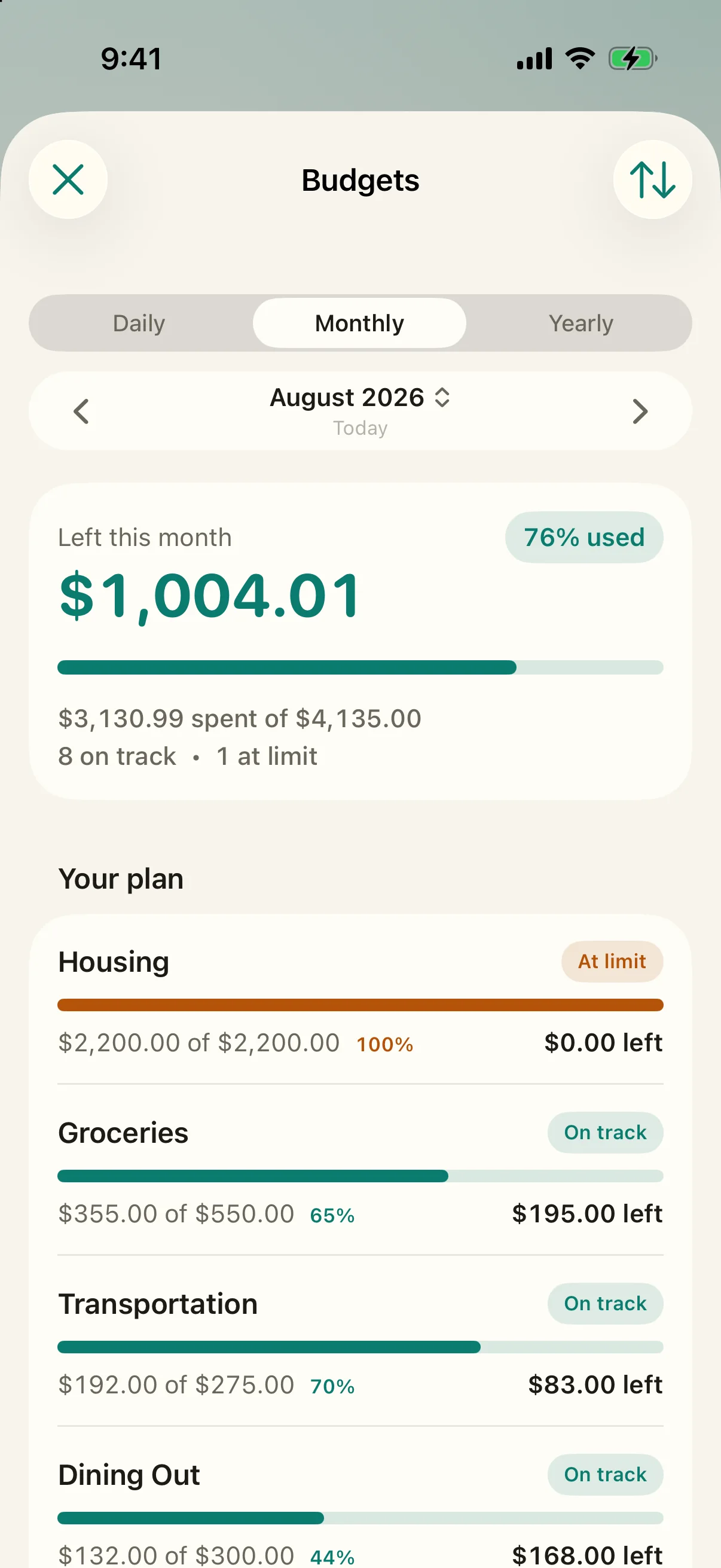
A single monthly spending target hides where money is leaking. Category budgets show what is spent, left, or over without requiring an envelope system.
How to use it
From Home, open Budgets and tap +. Choose a category, amount, and Daily, Monthly, or Yearly period. Move between periods to compare actual spending, and tap a budget to edit or remove it.
Simple category budgets in Simply Finance
Current app view

05

Financial Runway

Full Mode

What it solves
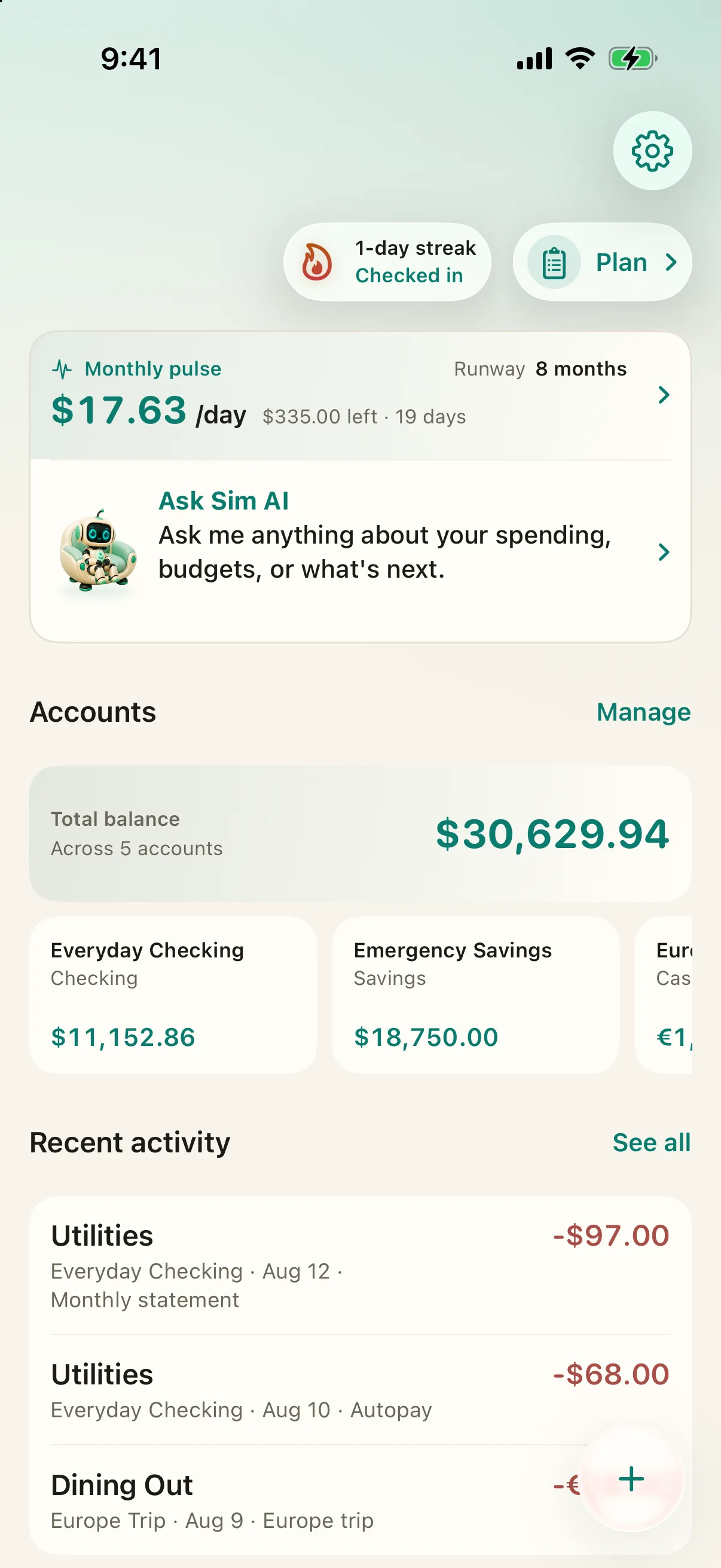
A balance alone cannot answer “am I okay?” Runway estimates how long your available money would last if income stopped, using either your budget or recent spending pace.
How to use it
On Home, open “How long can I maintain my lifestyle?” Review the months or years shown and the assumptions underneath. Keep account balances and spending current for the most useful answer.
Financial Runway in Simply Finance
Current app view

06

Recurring bills, income, and card reminders

iPhone, iPad & Android

What it solves
Subscriptions, paychecks, and card due dates are easy to forget, while posting them automatically can make balances drift. Simply Finance reminds you and keeps you in control.
How to use it
Open Settings → Recurring Transactions and add the amount, account, category, frequency, and optional reminder. When it appears on Home, tap Add or Skip. For a credit card, edit the account and enable its Statement Reminder.

07

Reports and plain-language insights

iPhone, iPad & Android

What it solves
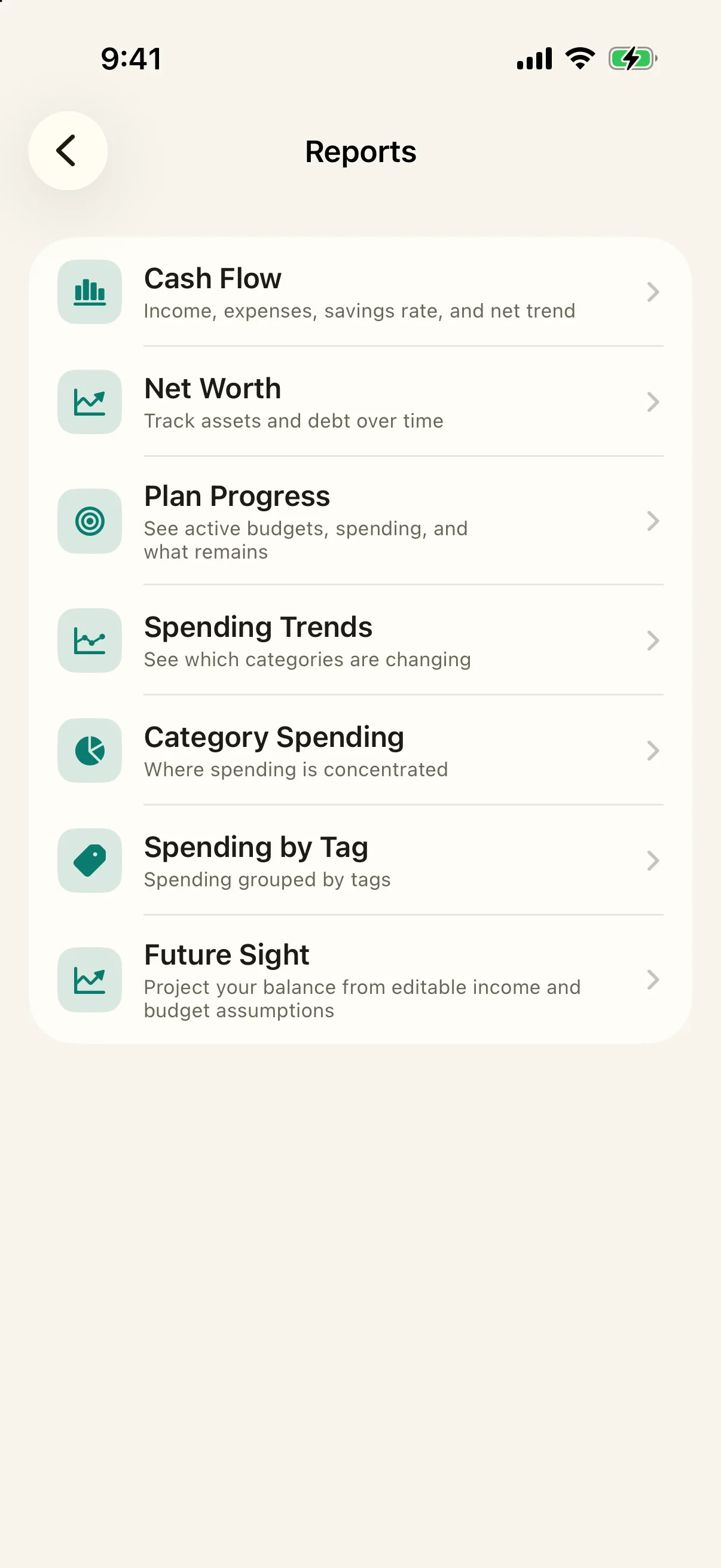
Raw transaction lists do not reveal whether you are improving. Reports turn them into net position, savings rate, trends, category averages, tag totals, and comparisons with earlier periods.
How to use it
Open a question on Home or choose View reports. Pick Cash Flow, Net Worth, Spending Trends, Category Spending, or Tag Spending, then drill into the transactions behind the number.
Reports and plain-language insights in Simply Finance
Current app view

08

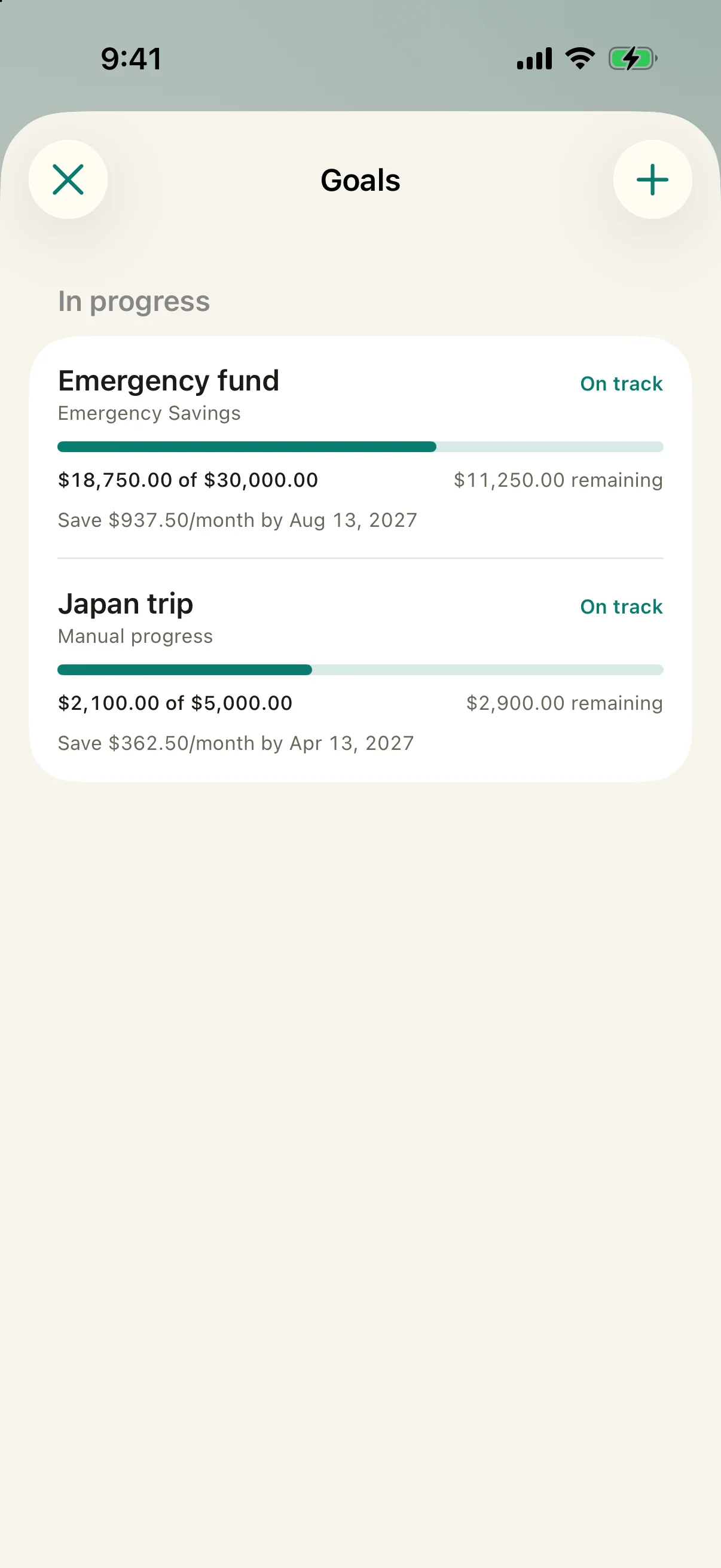
Savings and debt-payoff goals

Full Mode

What it solves
Budgets limit spending, but they do not show progress toward an emergency fund, purchase, or paid-off card. Goals make the destination and required monthly pace visible.
How to use it
From Home, open Goals and tap +. Choose Save Up, Debt Payoff, or Manual, set the target and optional date, then link an account when relevant. Linked goals update from the balance; manual goals let you enter progress yourself.
Savings and debt-payoff goals in Simply Finance
Current app view

0918

Understand and organize

Planning, history, and structure

Use these once your daily capture habit is working.

09

Searchable transaction history

iPhone, iPad & Android

What it solves
Old purchases become hard to find as the ledger grows. Flexible dates, filters, sorting, and grouping make the history useful instead of becoming a scroll graveyard.
How to use it
Open an account or the all-transactions list. Pick a preset month, year, all dates, or a custom range; then filter by type, account, category, text, or amount. Sort and group the results to match the question you are answering.

10

Transfers and correct debt payments

Full Mode

What it solves
Moving money between your own accounts is not income or spending. Treating it that way inflates reports and breaks balances.
How to use it
Tap +, choose Transfer, then select the From and To accounts. For a debt payment, transfer the principal to the debt account and record only interest or fees as an expense.

11

Future Sight projections

Full Mode

What it solves
Today’s balance says nothing about where you are heading. Future Sight turns your balance, income, and planned spending into a forward projection you can test.
How to use it
From Home, open “How much will I have in 3 months?” or Project Ahead. Choose 1–60 months, then adjust monthly income and spending to compare possible outcomes.

12

Needs, Wants, and Income categories

iPhone, iPad & Android

What it solves
Inconsistent categories make every budget and report less trustworthy. A small, stable category set gives spending the same meaning over time.
How to use it
Open Settings → Categories to add, rename, or remove categories under Needs, Wants, or Income. Choose a category when logging; its type classifies the transaction automatically.

13

Tags for trips and projects

iPhone, iPad & Android

What it solves
One-off projects cut across normal categories. Tags total a trip, wedding, renovation, or client project without polluting your everyday category system.
How to use it
Add tags in a transaction’s details, or add a tag to an account so every transaction there inherits it. Open Spending by Tag or Reports to see the combined total. Manage names in Settings → Tags.

14

Multiple currencies and exchange rates

Full Mode

What it solves
Foreign accounts cannot be added honestly if everything is forced into one currency. Conversion keeps original amounts while producing a comparable overview total.
How to use it
Set the base currency in Settings → Currency, then choose a currency per account. Open the FX or Rates control near account totals to review or override conversion rates, including offline rates for transfers.

15

Auto Transactions from messages

iPhone & iPad

What it solves
Manual logging is repetitive when your bank or wallet already sends a useful payment message. Message rules extract the amount and merchant and can route repeat formats automatically.
How to use it
Open Settings → Auto Transactions and create one template per message format using placeholders such as {amount} and {merchant}. Map account and category keywords, then use the provided Shortcut automation. Android support is planned for a later update.

16

Private on-device reminders and recaps

iPhone, iPad & Android

What it solves
A manual tracker needs gentle prompts, not nagging. Local reminders help you close gaps and notice changes without sending transaction data to a notification service.
How to use it
Open Settings → Notifications. Turn on any mix of the daily logging reminder, recurring reminders, yesterday’s spending, weekly recap, and monthly money recap.

17

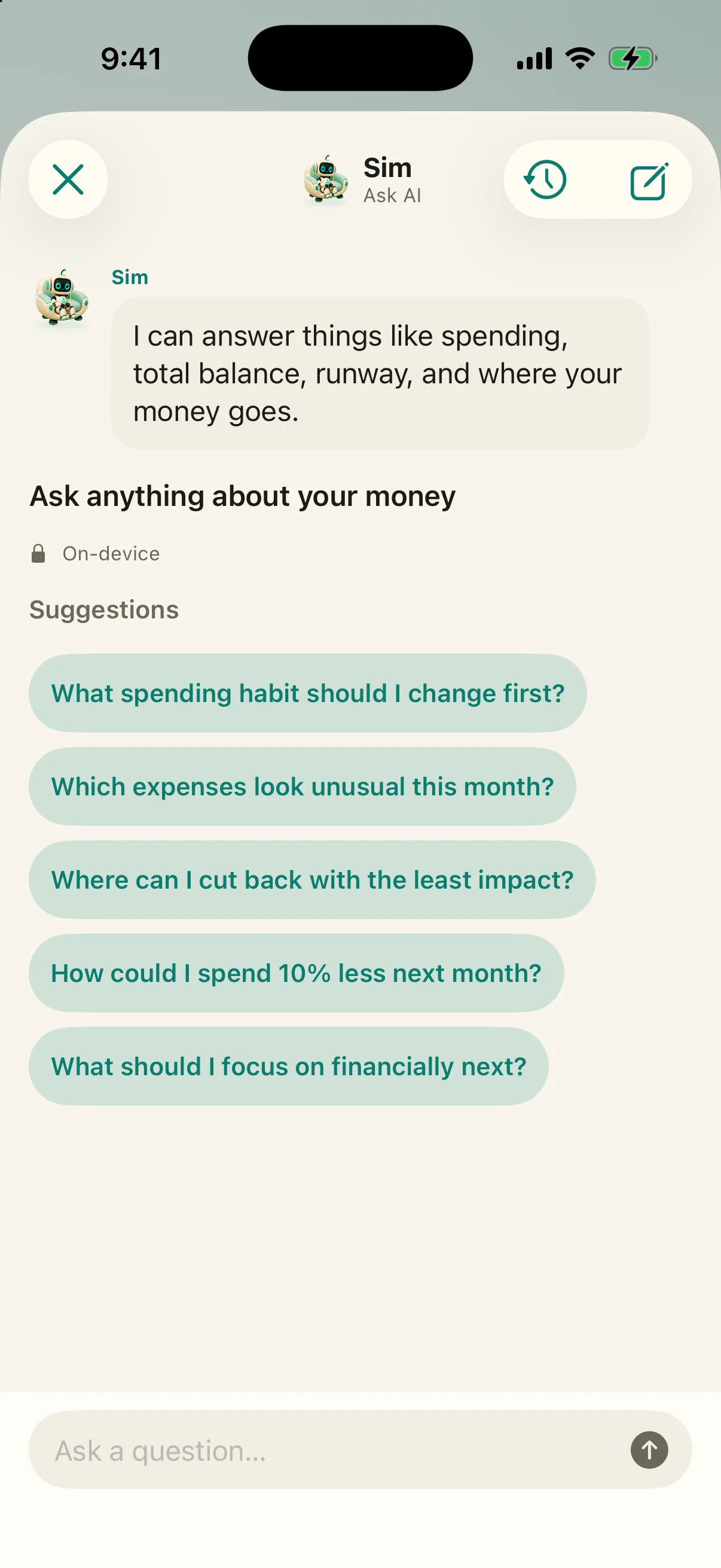
Ask AI about your money

Optional

What it solves
Charts are not always the fastest way to answer a specific question. Ask AI lets you use plain language while calculations still come from your real finance data.
How to use it
Enable Ask AI in Settings, then open it from Home and ask a question. Use the private on-device model when available, or connect your own OpenAI, Anthropic, Gemini, or compatible API key for full-history answers. Cloud use is opt-in.
Ask AI about your money in Simply Finance
Current app view

18

Home-screen widgets and quick log

iPhone, iPad & Android

What it solves
Opening the whole app adds friction when you only need a glance or a quick entry. Widgets keep the most useful numbers and actions one tap away.
How to use it
Add Simply Finance widgets from your device’s home-screen widget picker. Choose Spent vs Budget, Runway, or Quick Log; tap a value to open the app or Expense/Income to jump into entry.

1925

Keep ownership

Data, privacy, and recovery

These features make the app safe to adopt for the long term.

19

Import from other money apps

iPhone, iPad & Android

What it solves
Starting over destroys history and makes switching expensive. Import brings past transactions, accounts, categories, and tags into the same ledger you will use going forward.
How to use it
Open Settings → Import from Another App and choose a CSV exported from Copilot, YNAB, Monarch, Mint, Simply Finance, Tarsi, or another spreadsheet. Review the preview, then confirm. Re-importing skips duplicates.

20

Offline-first, no bank login

Always on

What it solves
Bank connections can break, duplicate transactions, and expose another credential. Local-first storage keeps the app fast, available, and useful without handing a bank login to an aggregator.
How to use it
There is nothing to enable. Add and edit data normally with or without a connection. The app works from its local encrypted database; a network is only needed for optional sync, updates, or cloud AI.

21

End-to-end encrypted sync

Full Version

What it solves
Using more than one device should not require giving the relay readable access to your finances. Sync moves encrypted records whose keys stay with you.
How to use it
On the first device, open Settings → Security & Recovery and copy the recovery phrase. On another device, choose Restore during setup and enter that phrase. Check the sync badge or Settings → Diagnostics if a device falls behind.

22

Backups, CSV export, and restore previews

iPhone, iPad & Android

What it solves
Your history should never be trapped inside one app. Portable files give you an independent copy and a clean path into spreadsheets or another device.
How to use it
Open Settings → Backup. Export a complete backup or a transaction CSV. To restore, choose Import Data or Import Backup, review exactly what will be merged, then confirm. Repeating a restore updates matches instead of duplicating them.

23

Biometric lock, PIN, and recovery phrase

iPhone, iPad & Android

What it solves
Device access and sync recovery are different risks. App Lock protects the screen from casual access; the PIN provides another gate; the recovery phrase is the key to restoring synced data.
How to use it
Open Settings → Security & Recovery. Enable biometric unlock and/or PIN, then store the recovery phrase somewhere safe outside the phone. Anyone with the phrase can restore the wallet; losing it can make encrypted sync data unrecoverable.

24

Trash and reversible deletion

iPhone, iPad & Android

What it solves
A mistaken deletion should not erase months of context. Trash removes records from active balances and reports while leaving a recovery path.
How to use it
Move an account, budget, category, or transaction to Trash from its edit screen or row action. Open Settings → Trash to restore it or permanently clear items you no longer need.

25

Custom relays, self-hosting, and sync diagnostics

Full Version

What it solves
Some people want infrastructure control, redundancy, or a clear explanation when sync fails. Custom relays provide ownership; diagnostics expose relay health, quota, pending records, and recent activity.
How to use it
Open Settings → Sync → Relays to add a relay or switch to custom-only mode. Use Diagnostics to inspect status and errors. To run your own relay, follow the self-hosting guide below, then add its URL on every device.

2627

Make it yours

Comfort and ownership

Useful finishing touches, once the core workflow is in place.

26

Themes, hidden balances, and ordering

iPhone, iPad & Android

What it solves
A finance app is opened in public and used repeatedly. Display controls reduce shoulder-surfing and keep the most important accounts and budgets easy to reach.
How to use it
Choose System, Light, or Dark under Settings → Theme, and toggle Hide Balances when you want amounts obscured. Use the reorder action on Accounts or Budgets to put the items you check most at the top.

27

Free start and one-time Full Version unlock

One-time app purchase

What it solves
The free version lets you establish the habit first. One Full Version purchase unlocks encrypted Sync and detailed Reports, while optional managed relay hosting remains a separate choice.
How to use it
Download and use the free features as long as you like. When you need encrypted Sync or detailed Reports, open Settings → Unlock All Features and make the one-time in-app purchase. Keep the built-in relay, add optional managed hosting, or self-host.

Focused guides

Ready for more detail? These walkthroughs go deeper on the most important setup and planning workflows.

Still deciding?

If you are weighing Simply Finance against another app, these side-by-side comparisons lay out the trade-offs honestly.